This quickstart guide shows how to use the Payment Gateway to request a patient's credit card information when booking an appointment and to bill that card. For additional information, see the full Payment Gateway User Guide and FAQ.
How to request credit card information
Step 1 - Book an appointment for a patient.
Step 2 - In the Appointment Details screen, check if there is a credit card icon.
If there is no icon, there is no valid credit card on file so proceed to step 3.
Step 3 - Select the arrow beside Close and select Close & Request Payment Card.
The appointment will be created, and the patient will receive an SMS asking them to enter credit card information.

To request a credit card for an existing Appointment
Select the Request Payment Card option in the Patient Record > Payment Cards tab, or
Send a payment card request to an existing appointment:
- Confirm there is NO credit card icon to the right of the appointment. The example shows where the icon will display.

- Right-click the appointment and select Request Payment Card.

-
The patient will receive an SMS with a link to a payment card page.


How to bill using ePayment
- Follow the private patient billing process.
- Check the patient is the payer and the correct treating doctor is selected.
- Select QuickPay.
- Select ePayment.
- Select the card to use. If there are multiple cards, the selected card will be highlighted in grey.
- Select Bill.
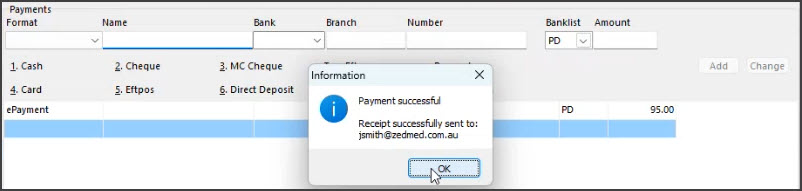
The ePayment dialogue will close, and a confirmation message will appear on the Quickpay screen.
If you need to process a Medicare rebate, go into the patient's account enquiry to access MA Online.