
Refund a patient who paid their invoice using an integrated Tyro terminal. The patient being refunded can be on-site (at reception) or off-site.
Note: If the original payment was taken using Tyro MOTO mode, the refund may be made using Tyro MOTO.
Refunding an on-site patient/payer
In this scenario, the payment was made using Tyro (EFTPOS), and the payer is still at the clinic (reception) to tap their card for the refund.
To refund a Tyro payment:
- Navigate to the patient's Acc Enquiry.
- Display All Invoices, search for the relevant invoice and note the Receipt number.
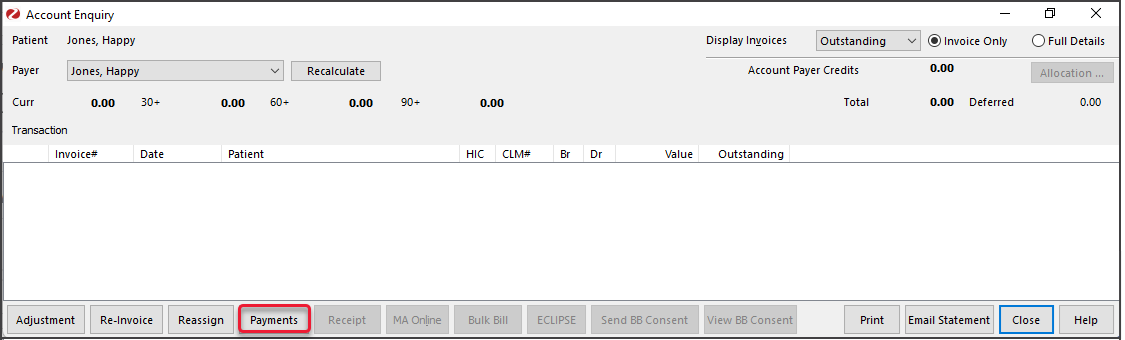
- Select Payments.
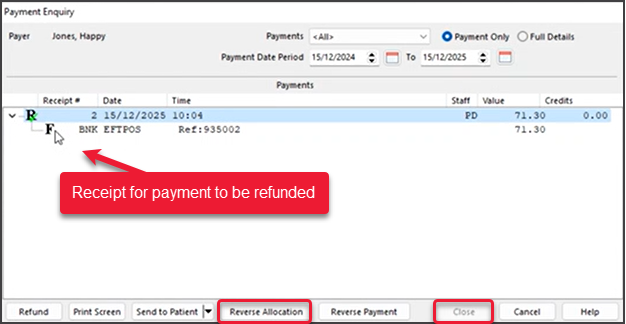
The Payments Enquiry screen will open. - Select the relevant Receipt (R) to highlight it.
- Select Reverse Allocation.
- Select Yes to confirm the 'reverse allocation' message.
- Select Close to complete the reversal and return to the Account Enquiry screen.
Account Enquiry will show an Outstanding amount and a Payer Credit equal to the invoice Value.
Process the Refund
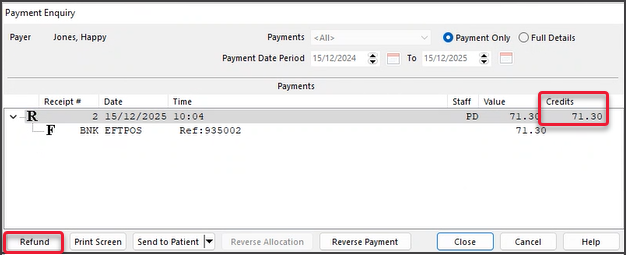
You can now go back to Payments and submit the refund. - Select Payments.
- Select the receipt to highlight it.
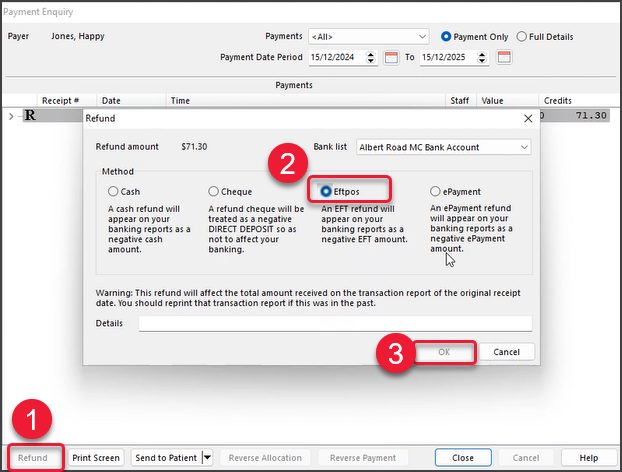
- Select Refund.
- Select Eftpos.
- Select OK.
-
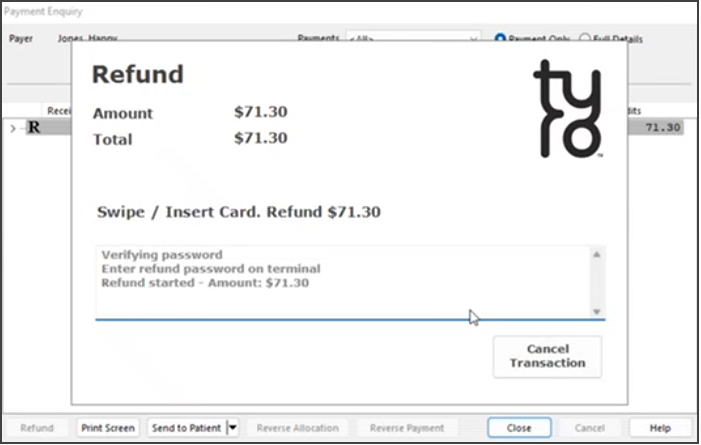
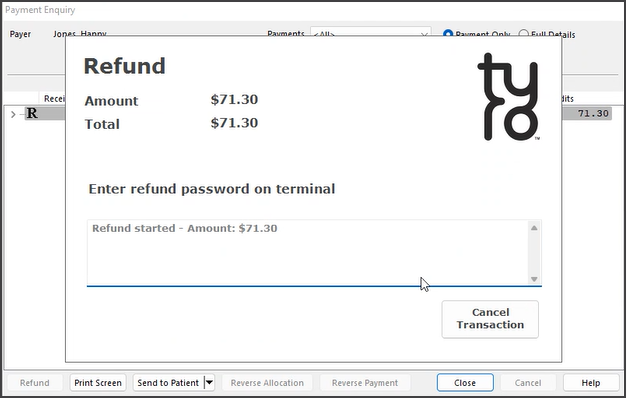
Follow the Tyro terminal prompts.
When you select OK, Zedmed will open the Tyro terminal's dialog. - Enter the Admin password in the terminal.
- Have the payer swipe their card on the terminal.
-
Select YES to the 'surcharge' message when prompted.
Zedmed will not apply any surcharge to the refund.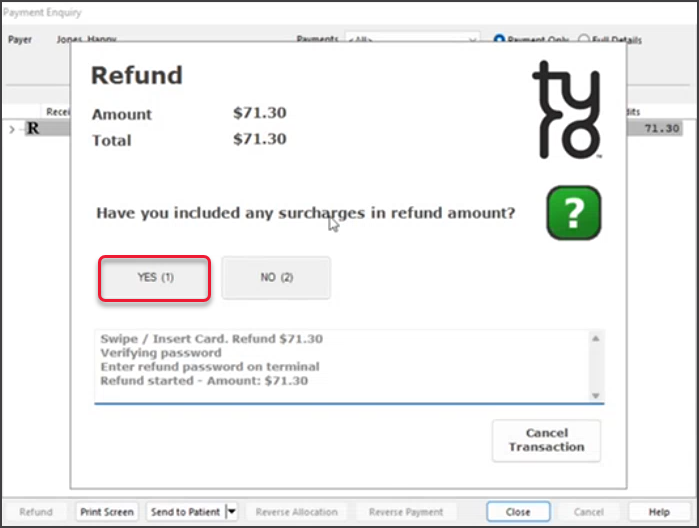
- Select YES on the signature message when prompted.
Depending on your terminal setup and workflow, the payer may be asked to sign the refund slip or enter a pin.
The Receipt will now show no Value or Credits remaining.
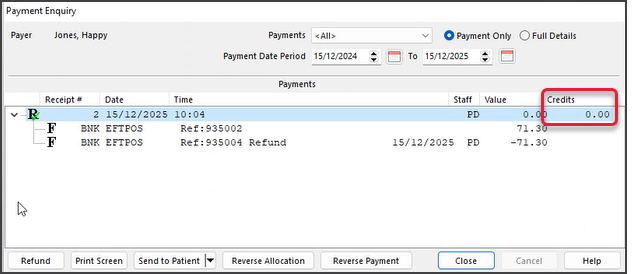
- Select Close.
The Refund dialog will open and display the available payment types.

Refunding an off-site patient/payer
In this scenario, the payment was made using Tyro (EFTPOS), but the payer has left the clinic (has gone home), so reception will need to manually enter the card information into the terminal to send the refund.
To refund an off-site payer's Tyro payment:
- Navigate to the patient's Acc Enquiry.
- Display All Invoices, search for the relevant invoice and note the Receipt number.
- Select Payments
The Payments Enquiry screen will open. - Select the receipt (R) to highlight it.
- Select Reverse Allocation.
- Select Yes to confirm 'reverse allocation' message.
- Select Close to complete the reversal and return to the Account Enquiry screen.
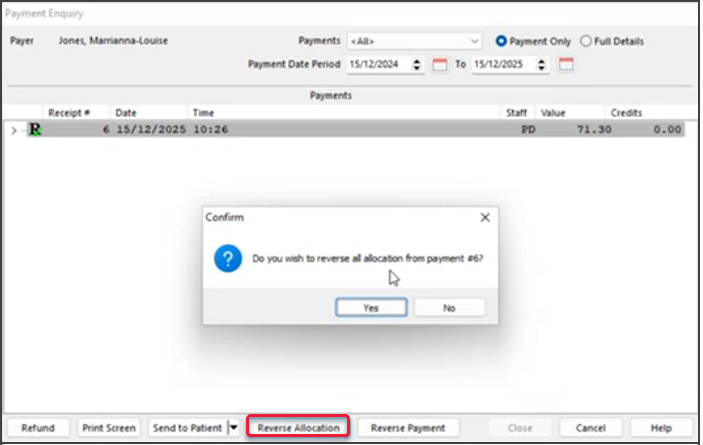
Account Enquiry will show an Outstanding amount and a Payer Credit equal to the invoice Value
Process the Refund
You can now go back to Payments and submit the refund. - Select Payments.
You will see the invoice now has a Credits equal to the invoice Value. - Select the receipt to highlight it.
- Select Refund.
- Select Refund.
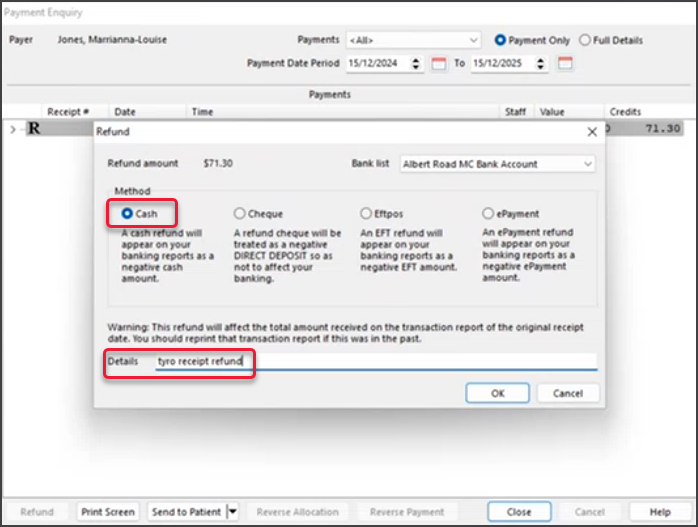
The Refund dialog will open and display the available payment types. - Select Cash.
Cash must be used because EFTPOS will trigger the payer Tyro dialogue, which requires the payer to swipe their card. - In Details type text to display on the Banking Report, e.g "Tyro refund".
- Select OK.
- Select Close.
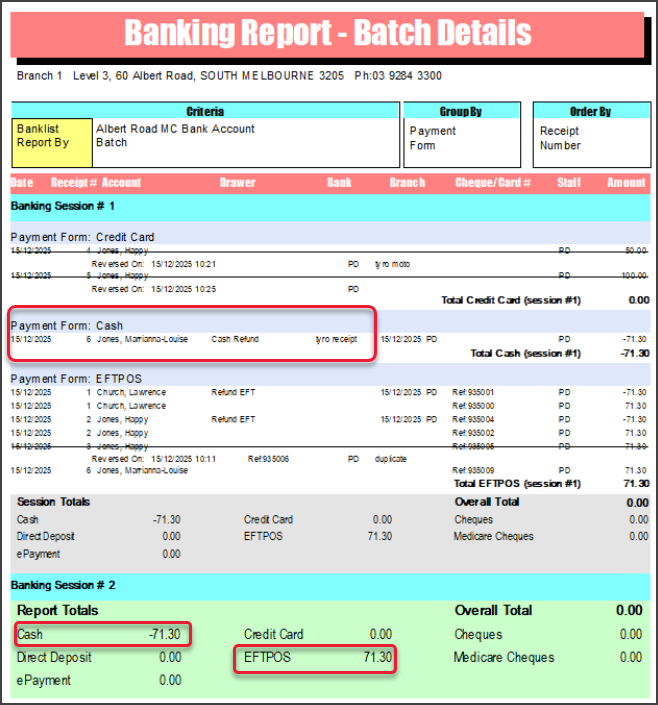
In the Banking Report
-
Note that the refund was made as Cash so it can be considered for banking. E.g., reconcile a Cash refund of -71.30 against the EFTPOS payment of 71.30.
Refund the payment to the Payer's credit card
On the Tyro Terminal, use the Moto/Manual refund steps to refund the payment amount to the payer's payment card. These steps may vary in different versions of your Terminal. - Call the payer to get the card details.
- Navigate to MOTO mode on the terminal.
- When prompted, enter the card details.
- Enter the purchase amount.
- Complete the refund.
MA same day delete
For rebates processed using MA Online, the same-day delete (before 4pm) should be used to reverse the payment. If the claim is referred to Service Australia and is being processed, you will need to call Medicare.
Manual/MOTO payments
Payments that were taken using MOTO mode on the EFTPOS terminal should be refunded in the same manner.