Telehealth consult (copy URL)

This guide explains the process for practitioners who want to open Telehealth manually by copying a link to their web browser.

Considerations

  • The first time Telehealth is used on a new device or browser, you will be prompted to allow access to the camera and the microphone. Select Allow for this message. The request originates from the web browser used to facilitate the connection.
  • Admit patients from the Waiting Room to start the encounter, so Admit times are recorded in the Waiting Room.
    If the patient is not Admitted, reception will not know if the patient is still waiting.
  • If the patient record is manually opened, a red banner will display at the top of the record when the patient joins the Telehealth session. 
    Clicking the red banner will open the Telehealth session for the practitioner. 

How Telehealth works

  1. The patient books a Telehealth appointment and receives a confirmation SMS.
  2. Before the appointment (e.g., 30 minutes), the patient receives an SMS with the Telehealth link.
  3. The patient taps the link to open Telehealth, then taps Join (selectable 30 minutes before appointment).
    • The video connection opens on the patient's phone. Displays - 'Your practitioner will arrive shortly'.
    • The patient is automatically Attended to the Waiting Room.
  4. The practitioner sees the patient in the Waiting Room and selects Admit.
    This opens the patient's clinical record and starts the Current Encounter in Zedmed.
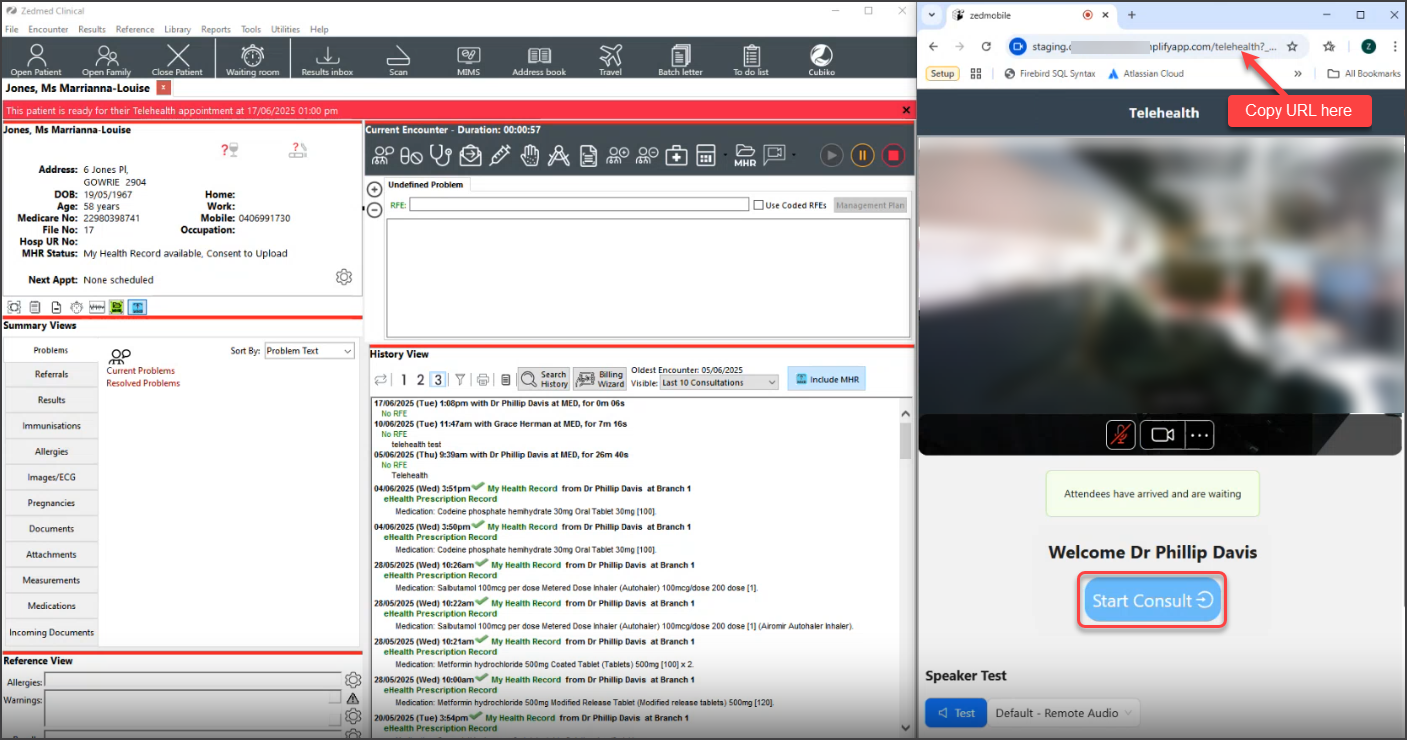
  5. The practitioner selects Telehealth from the Current Encounter menu and chooses Copy URL
  6. The practitioner copies the URL into their web browser, which displays the Telehealth UI.
  7. The practitioner selects Start Consult in Telehealth.
    The practitioner and patient see each other and can start talking.

How to run a Telehealth consult

To run the Telehealth consultation.

  1. Monitor the Waiting Room.
    Patients automatically attend to the Waiting Room when they open Telehealth on their phone and tap Join.
  2. Select the patient and select Admit.
  3. The patient's record will open, and the Current Encounter menu will include the Telehealth button. 

  4. Select the Telehealth button and Copy URL.
  5. Open your desktop browser and paste the URL into the address bar, and press Enter.
    You can resize the browser next to Zedmed, or have it on a separate monitor.
  6. Select Start Consult.
    This displays the waiting patient and starts the Telehealth session.
    If there is a disconnection, select Re-Join to resume the Telehealth consultation.
    When the leave Icon is selected, Telehealth will close. This does not end the Encounter in Zedmed.

Patient workflow

Open the Telehealth link Approve pictures and video Tap Join