
If your practice upgrades to Zedmed Single Sign-On, the Doctors App will also need to be enabled for SSO. To do this, the Doctors App must be authenticated with Zedmed using a QR code (the same one used by the Telehealth Companion). For the Doctors App to present the QR code scanner, an iPhone must uninstall the App and an Android must delete its data, as explained in this guide.
Step 1 - Clear/remove the Doctors App
For an iPhone:
- Go to Settings > General.
- Tap on iPhone Storage.
- Click the Doctors App.
- Tap Offload App.
- Tap on Delete APP.
For Android phones:
- Go to Settings > Apps.
- Find and select the Doctors App.
- Tap Storage.
- Tap Clear Data.
Step 2 - Authenticate the Doctors App:
- In Zedmed, open Clinical
- Select My Options > Function Selections tab.
- Select Show SSO QR Code.
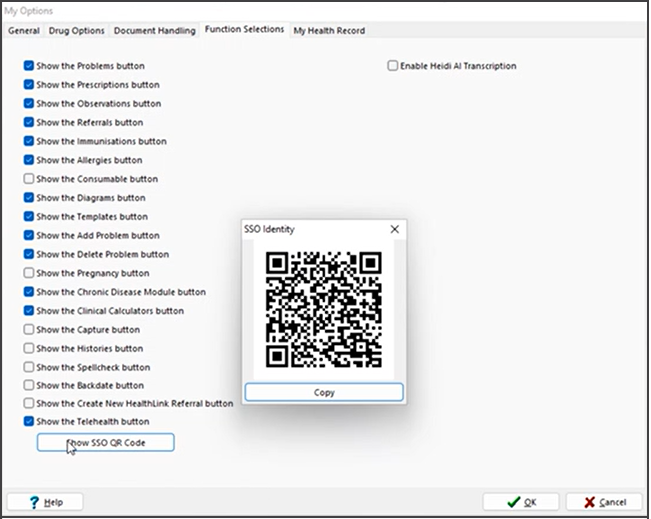
- Open the Doctors App on your phone.
iPhone users will need to reinstall the app first: https://apps.apple.com/au/app/zedmed/id1458817780 - The app will open a QR code reader.
- Scan the QR code using the Doctors App.
- Provide your (<username>@zedlcoud.com.au) username and password, and verify if prompted.
- Duo will send a push notification to your phone to Approve.
The Doctors App is now ready to use. You will be prompted to tap Approve access every 24 hours.
