
This guide explains how to access Zedmed Cloud and set up DUO using a practice phone shared by multiple staff.
New Zedmed users will receive an email with a 1Password link to their Zedmed credentials. This link is required to set up your secure2FA login, and it will only work for 1 week from the day it was created.
Your Cloud and Zedmed logins
You will first log into cloud with your Zedmed Cloud email address and password, which use DUO 2FA. Once you are on the Cloud Portal, you will log into the Zedmed Server using your Zedmed Username and Password. DUO is an app on the shared practice phone that prompts you to confirm it is you logging in.
You will require:
- Access to the practice mobile phone with DUO pre installed.
- An email with our own 1Password link.
- Access to Google Chrome (recommended), Apple Safari and Mozilla Firefox.
Inactivity considerations
- If a Zedmed session is inactive for 1 hour, you must authenticate with DUO to log back in.
- If a Zedmed session is inactive for 3 hours, you must authenticate with DUO and your session will redeploy.
Step 1 - Open Zedmed Cloud
For the steps below, use the mouse-over copy icon in 1Password to add your credentials to the fields provided.
| A) Open 1Password Click the link to open 1Password, then open the link to: zedcloud.com.au. |
B) Enter username Enter your Zedmed Cloud Email Address. Select Next. |
C) Enter password Enter your Zedmed Cloud password. Select Log in. |
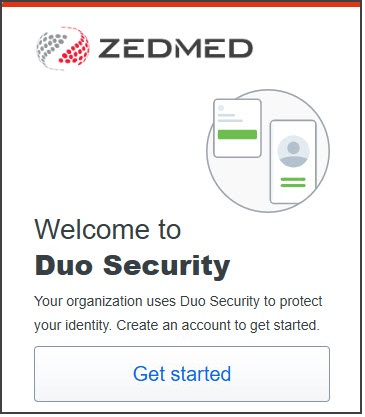
D) Sign in Welcome to DUO Security dialog will open. Select Next. |
 |
 |
 |
 |
Step 2 - Install DUO 2FA
Select Next to progress through several DUO information dialog until you get to Select an option.
| A) Start the DUO setup Select DUO Mobile. This is the 2FA app to be used. |
B) Enter phone number Enter the practice mobile without 0 at the start. E.g 42 550 5050. Select Continue. |
C) Confirm phone number Check the number displayed. Select Yes, it's correct. |
 |
 |
 |
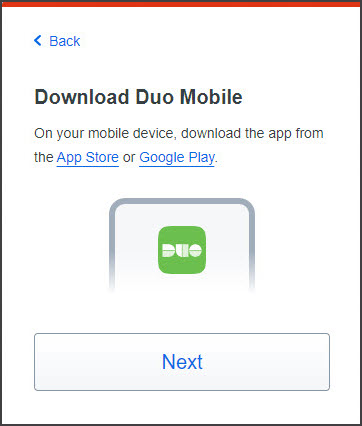
| D) Open App store The Download DUO Mobile dialog opens. Select Next. |
E) Scan QR code Use the QR code displayed to add yourself to the practice mobile phone's DUO app. |
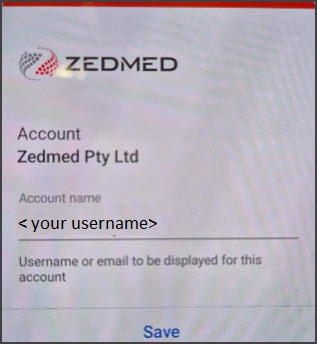
F) Add your name On the mobile phone DUO app Name Account screen, type your name and Save. |
 |
1) Open DUO and select + Add. 2) Tap Use QR code and scan the QR code on the screen. 3) Tap Save to add Zedmed. 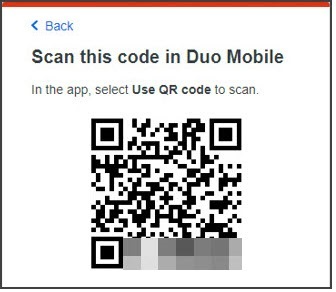 |
 |
| G) Login using DUO This prompt opens when you scan the code. Select Log in with Duo. |
H) Verify with DUO A DUO notification will open on your phone. Tap Approve . |
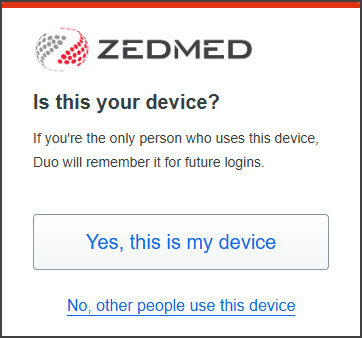
I) Confirm your PC/workstation Select Yes, this is my device. The Zedmed Cloud portal will open. |
 |
 |
 |
Step 3 - Log into Zedmed
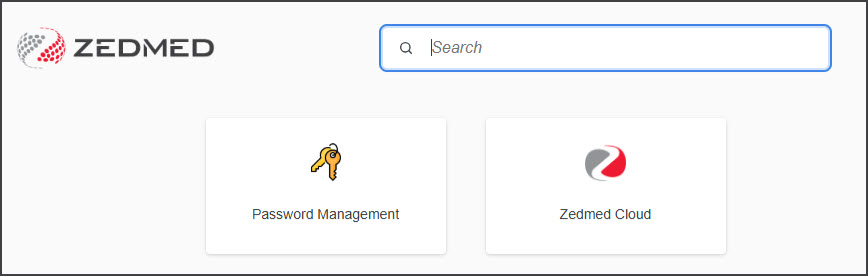
When the Zedmed Cloud homepage opens, it will show our Zedmed environments.
The link to your Zedmed Cloud password expires in 7 days, so it's important to remember it.
Select the Password Management tile and follow the change password guide if you want to set your password.
- Select your Zedmed server - Zedmed Cloud.
- Save the website to your browser's favourites/bookmarks.
- Select the Zedmed app.
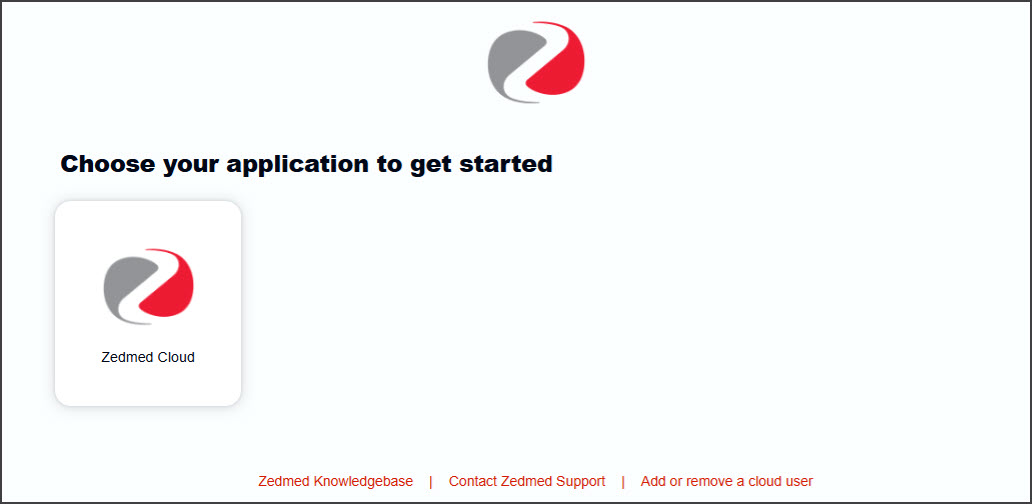 Zedmed will start creating your session and preparing the application.

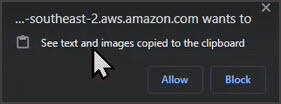
- When Zedmed opens, select Allow if prompted to allow clipboard functionality.
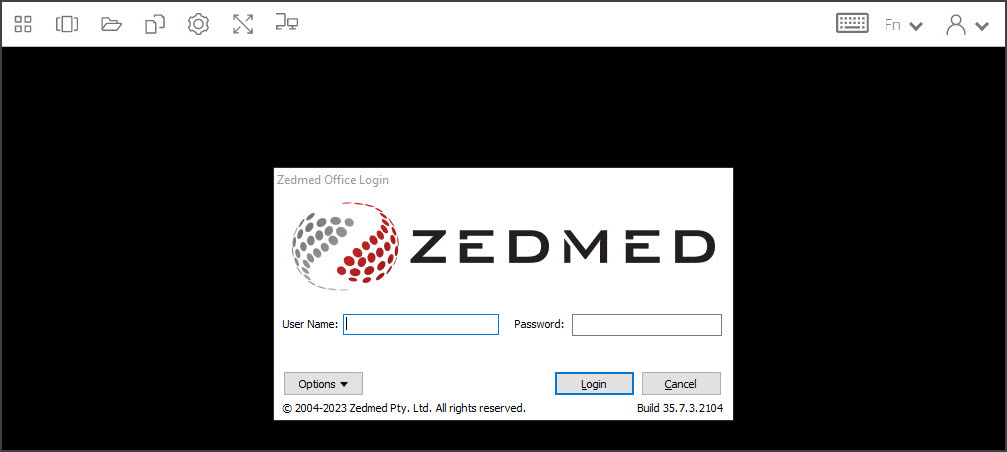
- When the Zedmed login screen appears, log in with your Zedmed username and password.
 Zedmed will start creating your session and preparing the application.
